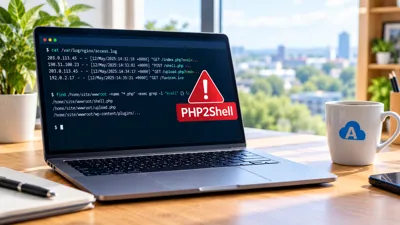
Patching PHP for PHP2Shell is only half the job. The next question clients ask is whether anyone got in before the patch, and this post shares the read-only script I've been using to answer that on Azure Linux App Service.
What is PHP2Shell (CVE-2026-109618 and CVE-2026-109619)?
PHP2Shell is the name given to two critical vulnerabilities in the PHP interpreter itself, both rated 9.2. They can let an attacker run code on a web server without logging in, and they don't depend on any flaw in your WordPress site, plugins or theme.
PHP released fixes on 21 October 2026 in versions 8.5.12, 8.4.27, 8.3.36 and 8.2.35. Details had leaked the day before, and there were reports of attacks in the wild around the release, so there was a window where unpatched servers were exposed.
There are no published indicators of compromise yet, so you can't simply search for a known file or IP address. Instead you look for the things an attacker would leave behind: crashes in the logs, changed files, web shells and ways back in.
Step 1: Check your PHP version on Azure App Service
Before looking for signs of exploitation, make sure the site is actually running a fixed version. SSH into the app through Kudu (https://<app-name>.scm.azurewebsites.net/webssh/host) or with az webapp ssh, then run:
php -vYou're looking for 8.5.12, 8.4.27, 8.3.36 or 8.2.35 or later, with a build date of 21 October 2026 or after. Azure rolled the new runtimes out quickly, but an app only picks up the new build when its container restarts, so check the start time too. If you're still on PHP 8.1 or older, there's no official fix and upgrading is the only real answer.
Step 2: Run a read-only PHP2Shell check script
What the script checks
The script runs ten groups of checks and prints everything to the screen, with a copy saved to /tmp/php2shell-check.txt:
PHP version and when the container last started, which tells you when the exposure window closed
Logs for out-of-memory errors, PHP-FPM worker crashes and timeouts, the behaviour the exploits cause
POST requests returning server errors, if nginx access logs are on disk
Files changed since 20 October, when the details leaked
PHP files in upload, media and image folders
Hidden or oddly named PHP files, and suspiciously large
.icofilesCommon web shell patterns such as
eval(base64_decode(...))Persistence:
auto_prepend_filesettings, custom ini files, the startup script, SSH keys and cronRunning processes, so you can spot anything started by a PHP worker
For WordPress: core and plugin checksums, admin users, site URLs, scheduled events, mu-plugins and
wp-config.php
It doesn't change anything on the site. The only files it writes are the output file and a copy of WP-CLI, both in /tmp, which sits outside the web root and is wiped on the next restart.
How to run it on Azure Linux App Service
SSH into the app as above. The session is already root, which the script needs to read the logs and run WP-CLI. Paste the whole block in and press enter. It works from any directory and usually takes a minute or two.
bash <<'EOF' 2>&1 | tee /tmp/php2shell-check.txt
W=/home/site/wwwroot
D="2026-10-20"
EX='-not -path */cache/* -not -path */node_modules/* -not -path */.git/*'

echo "===== 1. PHP version and container start ====="
hostname
php -v | head -1
echo "Container started: $(ps -o lstart= -p 1)"

echo; echo "===== 2. Log markers (memory, crashes, timeouts) ====="
grep -rniE 'Allowed memory size of|Out of memory \(allocated|exited on signal|Segmentation fault|Maximum execution time of' /home/LogFiles /var/log 2>/dev/null | grep -v '/kudu/' | tail -50

echo; echo "===== 3. POSTs returning 5xx (if nginx logs exist locally) ====="
cat /var/log/nginx/access.log* /home/LogFiles/nginx/* 2>/dev/null | awk '$6 ~ /POST/ && $9 >= 500 {print $1, $7, $9}' | sort | uniq -c | sort -rn | head -20

echo; echo "===== 4. Files changed since $D ====="
find $W -type f -newermt "$D" $EX 2>/dev/null | head -100
echo "--- by status change time ---"
find $W -type f -newerct "$D" $EX 2>/dev/null | head -100

echo; echo "===== 5. PHP in upload/media folders ====="
find $W -iregex '.*/\(uploads\|media\|files\|images\|tmp\)/.*\.\(php[0-9]?\|phtml\|phar\)$' 2>/dev/null

echo; echo "===== 6. Hidden or oddly named PHP, fake .ico ====="
find $W \( -name '.*.php' -o -name '*.php.*' -o -name '*.phtml' \) 2>/dev/null
find $W -name '*.ico' -size +5k 2>/dev/null

echo; echo "===== 7. Web shell patterns ====="
grep -rlE --include='*.php' --exclude-dir=cache --exclude-dir=node_modules 'eval\s*\(\s*(base64_decode|gzinflate|gzuncompress|str_rot13|\$_(POST|GET|REQUEST|COOKIE))|assert\s*\(\s*\$_|(system|shell_exec|passthru|exec|popen|proc_open)\s*\(\s*\$_|preg_replace\s*\(.*/e|(\\x[0-9a-fA-F]{2}){8,}' $W 2>/dev/null

echo; echo "===== 8. Persistence ====="
find $W \( -name '.user.ini' -o -name 'php.ini' \) -exec grep -H 'auto_prepend\|auto_append' {} \; 2>/dev/null
ls -la /home/site/ini 2>/dev/null && grep -rH 'auto_prepend\|auto_append\|disable_functions' /home/site/ini 2>/dev/null
echo "--- startup.sh ---"; cat /home/startup.sh 2>/dev/null
echo "--- custom nginx ---"; ls -la /home/site/default /home/site/*.conf 2>/dev/null
echo "--- ssh keys ---"; ls -la /home/.ssh /root/.ssh 2>/dev/null
echo "--- crontab ---"; crontab -l 2>/dev/null

echo; echo "===== 9. Running processes ====="
ps -ef --forest

echo; echo "===== 10. WordPress checks ====="
if [ -f $W/wp-config.php ]; then
  cd $W
  [ -f /tmp/wp-cli.phar ] || curl -s -o /tmp/wp-cli.phar https://raw.githubusercontent.com/wp-cli/builds/gh-pages/phar/wp-cli.phar
  WP="php /tmp/wp-cli.phar --allow-root --path=$W"
  echo "--- core checksums ---"; $WP core verify-checksums
  echo "--- plugin checksums ---"; $WP plugin verify-checksums --all
  echo "--- admin users ---"; $WP user list --role=administrator --fields=ID,user_login,user_registered
  echo "--- site URLs ---"; $WP option get siteurl; $WP option get home
  echo "--- cron events ---"; $WP cron event list --fields=hook,next_run_relative 2>/dev/null | head -40
  echo "--- mu-plugins ---"; ls -la wp-content/mu-plugins 2>/dev/null
  echo "--- wp-config includes/eval ---"; grep -n 'include\|require\|eval\|base64' wp-config.php
else
  echo "Not WordPress, skipped"
fi

echo; echo "===== DONE ====="
EOF
The output includes admin usernames and your startup script, so think about where you paste it. When you're finished, rm -f /tmp/php2shell-check.txt /tmp/wp-cli.phar tidies up, or just let the next restart clear them.
Step 3: Get the results analysed
Most of what comes back on a healthy site is routine: plugin updates, library code that happens to match a pattern, PHP-FPM recycling its workers. Rather than working through it all by hand, paste the output into an AI assistant such as Claude and ask it to go through it.
It will pick out what's normal, flag anything worth a closer look, and often suggest follow-up commands to dig further, such as listing files beyond the first 100 or showing what a suspicious file contains. Run those, paste the results back, and repeat until everything is accounted for.
Before pasting, remove anything you'd rather not share, such as admin usernames or email addresses.
Using the script on cPanel, Plesk and other hosting
The same approach works on other Linux hosting, but the paths are specific to Azure, so it will need adapting:
Web root: change
Wto wherever the site lives, such as~/public_htmlon cPanel or/var/www/vhosts/<domain>/httpdocson Plesk.Logs: on cPanel, look in
~/logs,~/access-logsand anyerror_logfiles in the site folders. Compressed logs needzgrepandzcat.Persistence: swap the Azure startup script check for
.htaccessfiles, which can set PHP values and handlers on Apache and LiteSpeed.Shared hosting limits: on CloudLinux the account sits in a jail, so you'll only see your own processes and can't check the system packages yourself.
That last point matters for older PHP versions. Hosts and Linux distributions often backport the fix without changing the version number, so PHP 7.2.34 built yesterday might be patched, or might not. On shared hosting the only reliable answer is to ask your host to confirm the exact package covers both CVEs and that the PHP processes have been restarted.
Use malware scanners alongside the script
A script like this is good at spotting changes and suspicious patterns, but it shouldn't be the only check. I'd use it alongside:
Wordfence for WordPress sites. Its scanner compares files against the official versions and checks for known malware signatures, including in premium plugins that WP-CLI can't verify. Its vulnerability alerts are also one of the quickest ways to hear about plugin and theme issues.
Your host's antivirus. Most cPanel hosts run Imunify360 or ClamAV, and many will run a scan on request.
Microsoft Defender for App Service on Azure. It isn't a file scanner, but it raises alerts for things like PHP files being called from upload folders. It's a paid add-on and only watches from the moment you switch it on.
A local scan. On Azure you can download the site from Kudu as a zip and scan it with the antivirus on your own machine, which avoids loading up the live server.
Signature-based scanners catch known web shells but can miss custom ones, which is why the file and log checks are still worth doing.
What to do if you find signs of compromise
If something doesn't add up, treat the site as compromised until you've ruled it out:
Copy the logs and any suspicious files somewhere safe before they rotate or get cleaned up.
Change the database password, hosting and SFTP credentials, and every admin password. On WordPress, regenerate the salts with
wp config shuffle-salts.Rebuild from known-good sources rather than cleaning files in place. Reinstall WordPress core and plugins from fresh downloads.
Restore content from a backup taken before 20 October if you have one.
Not a guarantee, but a solid answer
No check can prove a site wasn't touched, especially with no published indicators yet. But a patched site with clean logs, verified core files, no unexplained changes and nothing suspicious running is a reasonable basis for telling a client there's no evidence of unauthorised access.
And if you run Umbraco rather than WordPress, this one doesn't affect you. Umbraco is .NET, so there's no PHP serving requests.
If you'd like a hand checking your own sites, get in touch.

Written by Justin Neville
Justin has worked in software development since 1998. He began writing C and C++ applications, moving to C# and .NET development in 2002. From 2002 to 2013 he built large-scale internal web applications for major companies in the finance and insurance sectors. In 2013, he founded Nevitech IT Solutions Ltd, and since then has focused exclusively on building and supporting websites using Umbraco CMS.
Justin is an Umbraco Certified Master and an Umbraco MVP for 2026. He won the Umbraco AI Package Award for his AI Log Analyser package, contributes to the Umbraco CMS core, and co-organises the Umbraco Kent Meetup. His particular strengths include system architecture, performance optimisation, complex troubleshooting, and writing clean, scalable code. He also mentors junior developers and works closely with agency partners on complex builds requiring specialist expertise.